Imagine turning a thought—like a mood board, a character idea, or a social header—into a beautiful image in minutes, even if you can’t draw. Thanks to AI-generated art, that’s exactly possible: simple prompts can produce polished visuals you can use right away.
With a free AI art generator, anyone can create unique, eye-catching images online without incurring upfront costs. Whether you’re tweaking a color palette, testing a new style for a project, or making a quick banner for social media, these tools help users experiment and unleash creativity with speed and low friction.
Looking to make art for fun or work? AI-generated art for free can help you iterate fast—try a few different prompt ideas, choose a style, and refine the result. In this article, you’ll learn practical steps to create ai-generated images, pick the right generator for your needs, and use simple techniques to improve your final artwork.
Key Takeaways
- Create unique art pieces using a free ai art generator
- Explore new possibilities for artistic expression and different styles
- Discover useful features that make image generation faster and easier
- Learn how to use prompts and quick edits to get the look you want
- Make art online for free and turn those images into real projects or social visuals
The Rise of AI Art: What You Need to Know
The world of ai-generated art is moving quickly. What used to take hours of sketching or detailed photo editing can now be produced in minutes using a short instruction — for example, a prompt like “stormy neon skyline with reflective puddles” can generate a striking image in seconds. These tools are lowering the barrier to entry so more people can experiment with visuals and turn ideas into polished images.
How AI Art Generation Works
At a high level, image generation systems learn patterns from huge collections of images and then use those patterns to create new artwork. You give a prompt (a short sentence or a few keywords) and the generator returns an image that matches that description. Behind the scenes are models — often deep neural networks — that have been trained to translate words into visuals.
(Quick definitions: a model is the trained system that predicts pixels; diffusion is a popular technique that gradually builds an image from noise; a prompt is the text you type to describe what you want.) Best free AI art tools package these models into friendly interfaces and useful features so users can focus on the creative part rather than the technical details.
The Evolution of AI Art Technology
AI art tech has advanced fast. Early generators produced looser, often surreal images; modern models can create detailed, photorealistic or painterly outputs depending on the settings. Open-source projects and research breakthroughs (like the rise of stable diffusion–based models) made high-quality generation affordable and widely available.
Because the tools have matured, many platforms now offer presets, style libraries, and parameter controls so you can tune the result — for instance, dialing up realism or pushing toward impressionist brushwork. That flexibility is what makes these generators useful for both quick concept art and finished pieces.
Why AI Art Is Revolutionizing Digital Creation
AI-generated art is changing how creators produce digital content: it speeds up ideation, helps non-artists create professional-looking visuals, and expands the palette of possible styles. Designers use generators to mock up hero images, marketers produce social visuals quickly, and hobbyists explore new aesthetics without steep learning curves. In short, these tools augment human creativity rather than replace it.
| FeatureTraditional ArtAI-Generated Art | ||
| Creation Time | Several hours or days | Minutes or seconds |
| Skill Level | Requires artistic skills | Accessible to anyone |
| Customization | Limited by artist’s skills | Highly customizable via prompts and parameters |
As the underlying technology keeps improving, expect even better control over styles, higher-resolution outputs, and more features that help you refine results — from color palettes to composition guides. If you want to dive deeper into technical details, look up resources on diffusion models and popular open-source projects that power many generators today.
“AI-generated art is not just a tool, it’s a collaborator that can inspire and augment human creativity.”
Why Use a Free AI Art Generator for Your Creative Projects
Free AI art generators can simplify many parts of a creative workflow. From bloggers needing a quick cover image to designers testing visual concepts, these tools let people of varying skill levels produce polished art faster than traditional methods.
Benefits for Content Creators and Social Media
If you create visuals for social channels or blogs, a free generator can cut production time dramatically. Instead of opening a graphics editor for an hour, you can try several ideas in minutes and pick the best one. That makes it easier to keep a steady stream of engaging social media posts and media posts without hiring a designer for every piece.
Key benefits include:
- Rapid content creation — iterate multiple concepts in the time it used to take to make one
- Customizable art styles — switch between realistic, illustrative, or abstract looks with a few prompt tweaks
- No need for professional design experience — these generators lower the technical barrier so more users can make great art
Applications for Personal and Professional Use
Free AI art tools are useful for both personal projects and work. A few examples:
- A hobbyist making a stylized portrait for their profile
- A marketer creating header images or visuals for an email campaign
- A presenter generating unique images for a pitch deck or presentation
These quick wins add up: small teams can produce more content for marketing and social media with the same headcount.
Cost Comparison: Free vs. Paid AI Art Tools
When choosing a generator, balance what you need against potential costs. Free tiers are great for experimenting and small projects, but paid plans often unlock higher-resolution downloads, commercial rights, faster queues, and advanced features.
| FeatureFree AI Art GeneratorsPaid AI Art Generators | ||
| Basic Features | Available (good for testing) | Available (often with better performance) |
| Advanced Features | Limited or behind paywalls | Available (batch generation, higher-res, extra styles) |
| Commercial Use | Varies — sometimes restricted | Usually allowed with clearer licensing |
| Support | Community or limited help | Priority support and documentation |
Practical tip: check whether a platform requires credits for extra downloads or higher resolutions — that can make a “free” tool more expensive over time. For example, some platforms let you try basic generation for free but charge credits for high-res images or commercial licenses. Think about whether you need print-quality images or just visuals for social media.
Quick decision checklist: do you need commercial rights? What export formats and max resolution are offered? Does the platform provide features or presets that speed your specific workflow?
Try this small experiment as a CTA: pick two free generators, set a 15-minute timer, and create three candidate images for your next post. Compare the results and note which platform’s features (style options, speed, credits) fit your process best.
Top Free AI Art Generators in 2025
By 2025, free tools for creating AI artwork are more capable and easier to use than ever. Whether you’re a hobbyist exploring new styles or a pro testing concepts, these platforms let you generate compelling images quickly without a big budget.
DALL-E Mini
DALL-E Mini is a go-to when you want quirky, imaginative results fast. Who it’s for: users who want playful or surreal visuals without fuss.
Key Features
- Text-to-image synthesis
- Simple, user-friendly interface
- Wide variety of output styles
Best Use Cases
Great for social visuals, thumbnails, and concept sketches. Try a prompt like: “dreamy retro diner at dusk, neon signs, cinematic lighting” — perfect for social media headers or quick concept art.
Stable Diffusion Web UI
Stable Diffusion Web UI is ideal when you want control. It exposes powerful parameters and can run many different models, so you can fine-tune results. Who it’s for: artists and developers who need customizable outputs and model-level control.
Key Features
- High-quality image generation
- Customizable parameters and model selection
- Strong open-source community and plugin ecosystem
Best Use Cases
Best for fine art, high-resolution pieces, or when you want to experiment with different models and diffusion settings. Example prompt: “hyperreal forest portrait, golden hour, detailed textures” — then tweak sampler and steps for cleaner results.
NightCafe Creator
NightCafe balances accessibility and features. It offers multiple creation modes and handy presets that help users explore styles quickly. Who it’s for: creators who want both convenience and options to iterate.
Key Features
- Multiple creation modes (text-to-image, image-to-image)
- Built-in editing and style controls
- Community gallery for inspiration and sharing
Best Use Cases
Use NightCafe for artistic experimentation and transforming photos into stylized images. Sample prompt: “impressionist seaside with soft brush strokes, pastel palette” — use image-to-image to rework a photo into painterly visuals.
Artbreeder
Artbreeder focuses on generative evolution—mix traits and iterate to evolve characters and scenes. Who it’s for: artists and designers building characters or exploring generative combinations over time.
Key Features
- Generative art through trait mixing
- Interactive evolution and collaboration
- Controls for blending and mutation
Best Use Cases
Perfect for character design, concept iterations, and collaborative creation. Try starting with a base portrait and slowly adjust traits to produce a family of related images.
Dream by WOMBO
Dream by WOMBO is built for instant, attractive outputs with minimal setup. Who it’s for: users who want polished images fast with minimal tinkering.
Key Features
- Simple text-to-image interface
- High-resolution output options
- Multiple style presets
Best Use Cases
Use Dream by WOMBO for quick posters, avatars, or visuals for content where you need a finished look quickly. Example prompt: “epic mountain scene, dramatic clouds, cinematic color grading” — great for a social post or background image.
| AI Art GeneratorKey FeaturesBest Use Cases | ||
| DALL-E Mini | Text-to-image, user-friendly, varied styles | Digital art, playful social visuals |
| Stable Diffusion Web UI | High-quality images, customizable, open-source models | Fine art, developer integrations, high-res generation |
| NightCafe Creator | Multiple modes, built-in editing, community features | Artistic experimentation, photo transformation |
| Artbreeder | Generative blending, interactive evolution, collaboration | Character design, iterative creation |
| Dream by WOMBO | Simple interface, high-res export, style presets | Quick professional-looking visuals, social content |
When choosing a platform, think about what you need most: instant outputs and simple styles, or model control and high-resolution generation. Try each generator with one short prompt and one adjusted prompt to see how styles and features change the result — that quick test will show which platform fits your creation process best.
How to Make AI Art for Free: A Step-by-Step Guide
Free AI art generators open simple, practical ways to create artwork — whether you want a quick social image or a concept piece to refine. In a few steps you can learn which platform fits your goals and produce usable images without spending money.
Choosing the Right Platform for Your Needs
Start by matching the platform to the job: do you need an ai portrait, a stylized poster, or to turn photos into AI art for free? Some generators excel at portraits and clean, realistic results, while others are better for experimental styles or fast, low-effort visuals. Look for these practical signals when evaluating a platform: export formats (JPEG/PNG), max resolution, licensing for commercial use, and whether the platform uses credits for higher-res downloads.
(Example tutorial video:
)
Creating Your First AI Artwork
Once you pick a platform, write a clear prompt and try a short first run. Here’s a quick test you can use: craft a 10–12 word prompt that covers subject, mood, and lighting — for example, “lonely lighthouse at sunset, warm tones, cinematic atmosphere.” Submit that prompt and see what the generator returns. If the result isn’t close, refine the prompt with one specific detail (color, camera angle, or style).
First-prompt example: “a cheerful café scene, golden hour, film grain.” Revised prompt for a cleaner result: “a cheerful outdoor café at golden hour, shallow depth of field, warm film grain, illustrated.” Small edits like adding lighting or depth cues often change the outcome dramatically.
Saving and Exporting Your Creations
After you generate an image, most platforms let you download it as JPEG or PNG. If you plan to print or use the image in high-resolution work, check the export settings: aim for at least 300 DPI for print and export at the largest available pixel dimensions. If a platform offers filters or upscale tools, use them to boost resolution before saving. Keep track of any credit costs for high-res exports so you don’t get surprised later.
Troubleshooting Common Issues
If the AI doesn’t understand your prompt, try these quick fixes:
- Be specific: replace vague words with clear descriptors (e.g., “dramatic lighting” → “side-lit with strong shadows”).
- Adjust the subject detail: add color, composition, or emotion to guide the generator.
- Improve your source photo: when turning photos into AI art, use a clear, well-lit image for better results.
- Try different styles or models: some platforms let you pick styles or underlying models — switch to see how results change.
By following these steps you can efficiently create ai-generated images and iterate toward the look you want. A simple practice routine: pick one prompt, produce three versions, then pick the best and refine it — repeat this a few times to learn which prompts and features work for your projects.
Mastering AI Art Prompts: Tips for Better Results
Writing a great prompt is part craft, part experimentation. If you learn a few simple patterns, you’ll get more of the images you want from free AI art generators. Think of prompts as short recipes: a subject + setting + lighting + style will usually get you a usable result.
Prompt Structure and Format
Try this approach: start with the subject, add a clear setting or action, include mood or lighting, and finish with a style or reference. For example, instead of “a cat,” write a sleek black cat sitting on a moonlit windowsill, with a misty forest beyond, soft rim lighting, in watercolor style. That extra detail guides the model toward the image you imagine.
Template you can reuse: [subject] + [setting/action] + [lighting/mood] + [style] + [detail].
Keywords That Enhance Your AI Art
Certain keywords help steer the generator toward a recognizable style: words like surrealism, cyberpunk, or impressionist tell the model which aesthetics to favor. Also include concrete visual cues—“high contrast,” “soft focus,” “studio lighting,” or “cinematic color grading”—to control the final look.
Examples of Effective Prompts (Before → After)
Seeing small edits makes the difference clear:
- Before: “a city at night” → After: “a futuristic cityscape at dusk, flying cars and neon reflections on wet pavement, cinematic wide-angle, teal and orange palette”
- Before: “a lake” → After: “a serene mountain lake at sunrise, mist rising from the water, lone sailboat, soft pastel colors, painterly brush strokes”
- Before: “portrait” → After: “cinematic portrait of an elderly woman, warm Rembrandt lighting, high detail, shallow depth of field, film grain”
These before/after pairs show how adding setting, lighting, and style turns a vague idea into a focused prompt that generates better images.
Prompt-Building Blocks and Quick Tips
Use these building blocks when creating prompts:
- Subject: who/what is in the image (e.g., “young violinist”)
- Setting/action: where or what is happening (e.g., “on a rain-slick street”)
- Lighting/mood: time of day, emotion, or light type (e.g., “golden hour, melancholic”)
- Style/technique: art movement, medium, or camera terms (e.g., “impressionist, oil paint, 35mm lens”)
- Detail/quality: adjectives for texture and clarity (e.g., “highly detailed, soft bokeh”)
Combine one item from each block for a concise, effective prompt.
Free Resources for Prompt Ideas
If you’re short on inspiration, check community galleries, prompt-sharing sites, and social media groups where users post prompts and results. These free resources can spark new directions and show how different keywords change outcomes. Remember to respect platform rules and avoid prompts that request copyrighted characters or generate harmful content.
Final note: prompts are iterative. Start specific, evaluate the output, tweak a word or two (lighting, detail, or style), and run it again. Over time you’ll build a small library of prompt templates that consistently produce the types of art and images you want.
Free AI Art Generator Tools with No Sign-Up Required
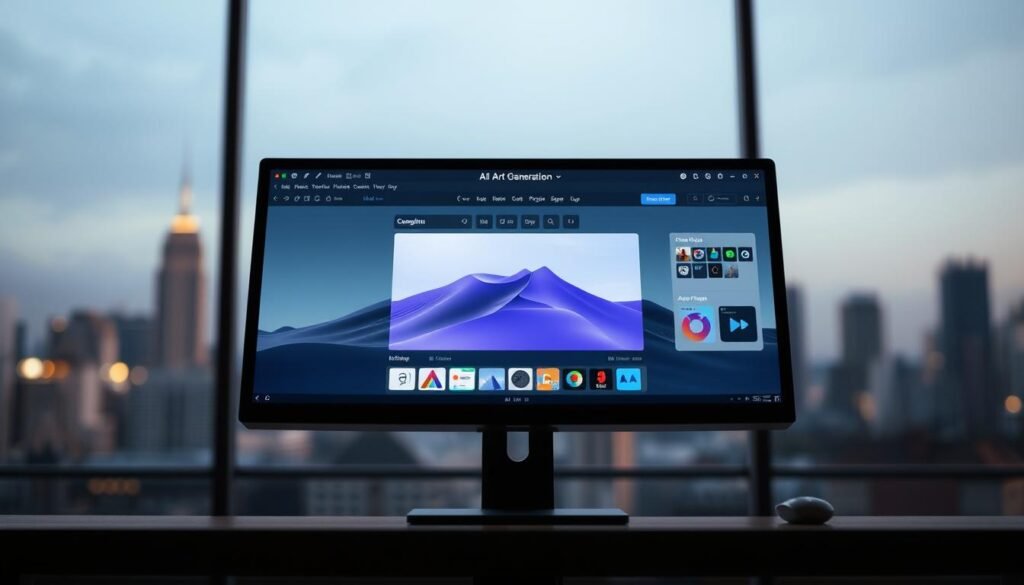
If you want to jump straight into making visuals, several tools let you create art instantly — no account needed. These instant-access platforms are great when you need a quick image for a post, a thumbnail, or to test a prompt idea without committing to a platform.
Instant Access Platforms
ImagineArt and similar web tools let users start generating images right away. Who they’re best for: anyone who needs a fast mockup or a one-off visual. A quick heads-up: many no-signup tools limit download size, add watermarks, or use daily credits for higher-resolution exports.
Browser-Based Options
Browser-based generators run entirely in your web browser, so there’s nothing to download and you can create on almost any device. These platforms are convenient for quick edits and experiments — ideal for producing images for social posts or testing different prompts before committing to a paid plan.
Mobile Apps for On-the-Go Creation
Mobile generator apps make it easy to capture inspiration and turn it into visuals while you’re out and about. They work well for quick social media content and creative sparks. Keep in mind that many apps offer free basics but reserve higher-resolution exports and commercial licenses for paid tiers.
Practical tips: if you need a quick thumbnail or social visual, a no-signup tool is perfect. If you’re planning prints or professional use, consider signing up so you can access higher-resolution downloads and clearer licensing. Also, use Wi‑Fi when exporting large images to avoid data charges and to speed up uploads and downloads.
These instant tools are useful starting points — they let you test prompts, explore styles, and create quick art without friction. When you outgrow the free experience, you’ll already know which platform’s features and interface suit your workflow best.
Specialized Free AI Art Creation Tools
Beyond general-purpose generators, there are specialized tools that excel at particular kinds of artwork. These focused art generators help you achieve specific creative goals—character design, portraits, anime styles, or photo transformations—without deep technical know-how.
Free AI Anime Art Generators
Anime-style creation has its own vocabulary and visual rules, and several free tools make it easy to generate high-quality anime artwork. If you’re designing characters for a comic or game, these generators let you iterate quickly on looks and expressions.
Top Anime Style Generators
Here are some tools to try for anime-style creations:
- ImagineArt: A flexible platform that can be nudged toward anime styles with the right prompts and style settings. Try prompts that mention “anime” and specific traits (hair, eye style, expression).
- Artbreeder: Great for building character families—mix facial features, adjust age and expressions, then evolve variants until you find the perfect design.
Creating Character Illustrations
Use clear trait descriptions when creating characters: hair color, eye shape, outfit, and a brief personality note (e.g., “shy forest ranger”). Practical prompt example: “young anime ranger, moss-green cloak, soft freckles, hopeful expression, cel-shaded style.” For game projects, export multiple variants to test which best fits your cast.
AI Portrait Generators at No Cost
Portrait generators can produce either photorealistic or stylized interpretations of people. They’re useful for profile pictures, concept portraits, or character studies.
Realistic vs. Stylized Portraits
Decide whether you want a faithful likeness or an artistic interpretation. For realism, include concrete details (lighting, camera lens, age, ethnicity). For stylized results, add art-movement or medium terms—“oil portrait,” “vector art,” or “studio lighting, dramatic shadows.”
Group Portrait Generation
Some tools can compose group portraits, but results depend on the platform and input method. If you need a group image, try generating individuals first and then use an image-composition workflow (image-to-image mode or photo-editing) to combine them cleanly.
Turn Photos into AI Art for Free
You can convert everyday photos into stylized ai-generated art for free using style transfer and related techniques. This is a fast way to create unique artwork from your own images.
Photo Transformation Techniques
Common techniques include style transfer (applying the look of one image to another) and “deep dream” effects that emphasize patterns and surreal textures. Keep in mind that style transfer often trades photographic detail for painterly texture—good for posters, less ideal for precise product photos.
Best Tools for Photo-to-Art Conversion
Try these tools for photo transformations:
| ToolDescription | |
| Deep Dream Generator | Creates surreal, dream-like variations that amplify patterns and textures—great for abstract artwork and mood pieces. |
| Prisma | Applies recognizable artistic filters inspired by famous painters and styles; quick and user-friendly for turning snapshots into stylized images. |
Quick user story: if you’re building a game and need concept art, start in Artbreeder to evolve characters, generate mood images with an anime-focused generator, and then convert your best photos into stylized backgrounds using a photo-to-art tool. That sequence saves time and keeps a consistent visual language across your creations.
Overall, specialized tools give you efficient ways to produce artwork tailored to particular projects—character design, portraits, anime, or photo-based creations—so you can focus on storytelling and iteration rather than the technical details of image generation.
Legal and Ethical Considerations When Using AI-Generated Art
Playing with AI art is exciting, but it’s smart to understand the legal and ethical landscape before you publish or sell creations. Questions about ownership, copyright, and fair use come up often, and the answers can vary by tool and jurisdiction.
Copyright and Ownership Questions
Who owns an AI-generated image depends on how much human input there was and the laws where you live. In several places (including current U.S. guidance), purely machine-generated works without meaningful human authorship may not qualify for traditional copyright. That doesn’t mean you can ignore ownership—platform terms and the source of training data matter a lot.
Proper Attribution Practices
In practice, many creators add short credits to be transparent. A simple, clear format works well, for example: “Generated with [Tool Name] — prompt by [Your Name].” That tells viewers you used an art generator and documents your role in the creative process. Always check the generator’s requirements—some tools ask for specific attribution wording or ask you to display credits when you share images publicly.
Commercial Use Guidelines
If you plan to sell prints, license images, or use the art in marketing, read the platform’s terms carefully. Some free tiers restrict commercial use or require an upgraded plan for business rights. Before using an image in a product or marketing campaign, confirm whether the generator allows commercial use and whether any third-party content was part of the output.
Avoiding Legal Trouble
Use this quick checklist before you monetize or publish AI art:
- Review the tool’s terms of service for commercial-use rules and attribution requirements.
- Check whether the generator’s training data or models include copyrighted material that could pose risks.
- Keep records of prompts, model versions, and export settings—this helps document your creative process.
- If in doubt about rights or potential claims, seek written permission or legal advice for commercial projects.
Knowing these practical steps helps you enjoy the possibilities of AI art while minimizing risk. When you share or sell generated visuals, being open about the tools and credits protects you and respects other creators. For deeper research, consult authoritative sources like the USPTO guidance or the specific platform’s legal pages and terms.
Enhancing and Editing Your AI-Generated Artwork
Think of AI output as a strong first draft — a starting point you can refine with editing and post-processing. A few well-chosen tweaks can turn a generated image into a polished piece suitable for web, print, or social sharing.
Free Post-Processing Tools
There are robust free tools that handle most polishing tasks. GIMP is excellent for detailed color correction and layer work, Canva is handy for layout, typography, and quick templates, and Photopea offers advanced, Photoshop-like controls right in the browser. Use these tools to fix composition, boost contrast, or add text and branding to your images.
Combining AI Art with Traditional Editing
Mixing generated visuals with traditional editing unlocks more creative control. A simple workflow looks like this: generate an image, correct color and exposure in Photopea, add overlays or type in Canva, then finalize small retouches in GIMP or Photoshop. This approach helps you preserve the strengths of the AI-generated image while tailoring it to your needs.
Creating Cohesive Series with AI Art
If you’re producing a series — for a campaign, a gallery, or a game — keep a consistent visual language. Use the same prompts, style keywords, and color palettes across images. Save your prompt templates and generator settings so you can reproduce or tweak the look consistently across multiple creations.
Printing and Displaying Your AI Creations
Before printing, make sure your image meets basic print requirements: export at high resolution (aim for the native pixel dimensions the platform supports), set files to 300 DPI for print, and use an appropriate color profile (sRGB for most consumer print-on-demand services, CMYK for professional printers). Add bleed where needed and export as a high-quality PNG or TIFF if available.
| ToolFeaturesCost | ||
| GIMP | Color adjustment, layer management, retouching | Free |
| Canva | Template designs, typography, layout; easy social exports | Free, with premium options |
| Photopea | Advanced photo editing, PSD support, browser-based | Free, with premium options |
Practical tip: export one test print before committing to a larger run — order a small canvas or poster to check colors and detail. If you plan to sell or distribute prints, double-check the platform’s policy on AI-generated art and confirm whether any licensing or attribution is required.
Using these tools and techniques will make your images more detailed and personal, and it helps you turn AI-generated visuals into finished work you’re proud to share.
Conclusion: Embracing the Creative AI Art Generation
You now have a practical roadmap to explore creative ai-generated art. With a handful of free tools at your fingertips, making striking images—whether for a blog, social profile, or a personal project—is easier than it used to be. From quick experiments in DALL-E Mini to deeper control with Stable Diffusion‑style platforms, each generator offers different features that suit different kinds of creators.
Using these free tools can genuinely help content creators and casual users alike: learn to write clear prompts, try a few styles, and tweak outputs with simple edits. That process—generate, refine, and repeat—lets you steadily unleash creativity and discover new possibilities for your visuals and projects.
One simple challenge to get started: write a 10–12 word prompt that describes subject, mood, and lighting, generate three images, pick the best, and do a light edit (color or crop) to make it publish-ready. Small experiments like this build confidence and turn curiosity into real creation. Enjoy the process and let your creativity grow.
FAQ
What is a free AI art generator?
A free AI art generator is a web or app-based platform that uses machine learning to create images from your input — usually text prompts or photos — without charging you to try basic features. Many platforms offer a free tier so users can experiment before deciding whether they need paid features like higher-resolution downloads or commercial licenses.
How do AI art generators work?
Most generators use trained models (neural networks) that learned patterns from large image datasets. You give a prompt or an image, the model interprets those cues, and the generator performs image generation by predicting pixels or refining noise into a coherent picture. Different models and techniques—like diffusion models—produce different styles and levels of detail.
Are free AI art generators as good as paid ones?
Free tiers can produce impressive results for many uses: social images, concept art, and quick experiments. Paid plans typically add useful features — higher-resolution exports, commercial-use rights, priority queues, or advanced controls — that matter for professional work. If you’re testing ideas, start free; if you need print-quality images or clear commercial rights, consider a paid plan.
Can I use AI-generated art for commercial purposes?
It depends on the platform’s terms. Some generators allow commercial use on paid plans or with explicit permission, while others restrict commercial use on free tiers. Always check the tool’s terms of service and any licensing or attribution requirements before using images in products, marketing, or monetized content. A safe attribution format is: “Generated with [Tool Name] — prompt by [Your Name].”
How do I create effective prompts for AI art generators?
Be specific and structured: include subject, setting/action, lighting or mood, and a style or technique. For example: “elderly sailor on stormy deck, dramatic side lighting, oil painting style, high detail.” Start concise, review the result, then tweak one element (lighting or style) to refine output. Many platforms also include presets or style tags that help guide generation.
Can I edit or enhance AI-generated artwork?
Yes. Use free tools like GIMP, Canva, or Photopea to adjust colors, crop, add text, or combine images. Post-processing helps adapt generated images for specific uses — for example, resizing for social media, retouching for print, or adding branding elements for marketing content.
Are there any free AI art generators that don’t require sign-up?
Yes — several instant-access platforms let you try generation without creating an account. These are handy for quick tests but often limit downloads, put watermarks on images, or restrict high-res exports. If you plan to use images repeatedly or commercially, signing up usually unlocks more options and clearer licensing.
Can I turn my photos into AI art for free?
Yes — many free tools offer photo-to-art transformations via style transfer or image-to-image modes. These tools apply painterly, anime, or surreal filters to your photos. Keep in mind style transfer can trade photographic detail for a painterly look, so choose the technique that fits your project.
What are some popular free AI art generators?
Popular free options include DALL-E Mini (for playful outputs), Stable Diffusion Web UI (for model control and open-source flexibility), NightCafe Creator (for multiple modes and community features), Artbreeder (for generative blending), and Dream by WOMBO (for quick polished visuals). Keep in mind availability and specific features can change, so check each platform for current capabilities and limits.
How can I find inspiration for AI art prompts?
Look at community galleries, prompt-sharing sites, and social media groups where users post prompts and their results. These free resources show what works in practice and spark new ideas. Save the prompts that produce styles you like and adapt them to your projects.